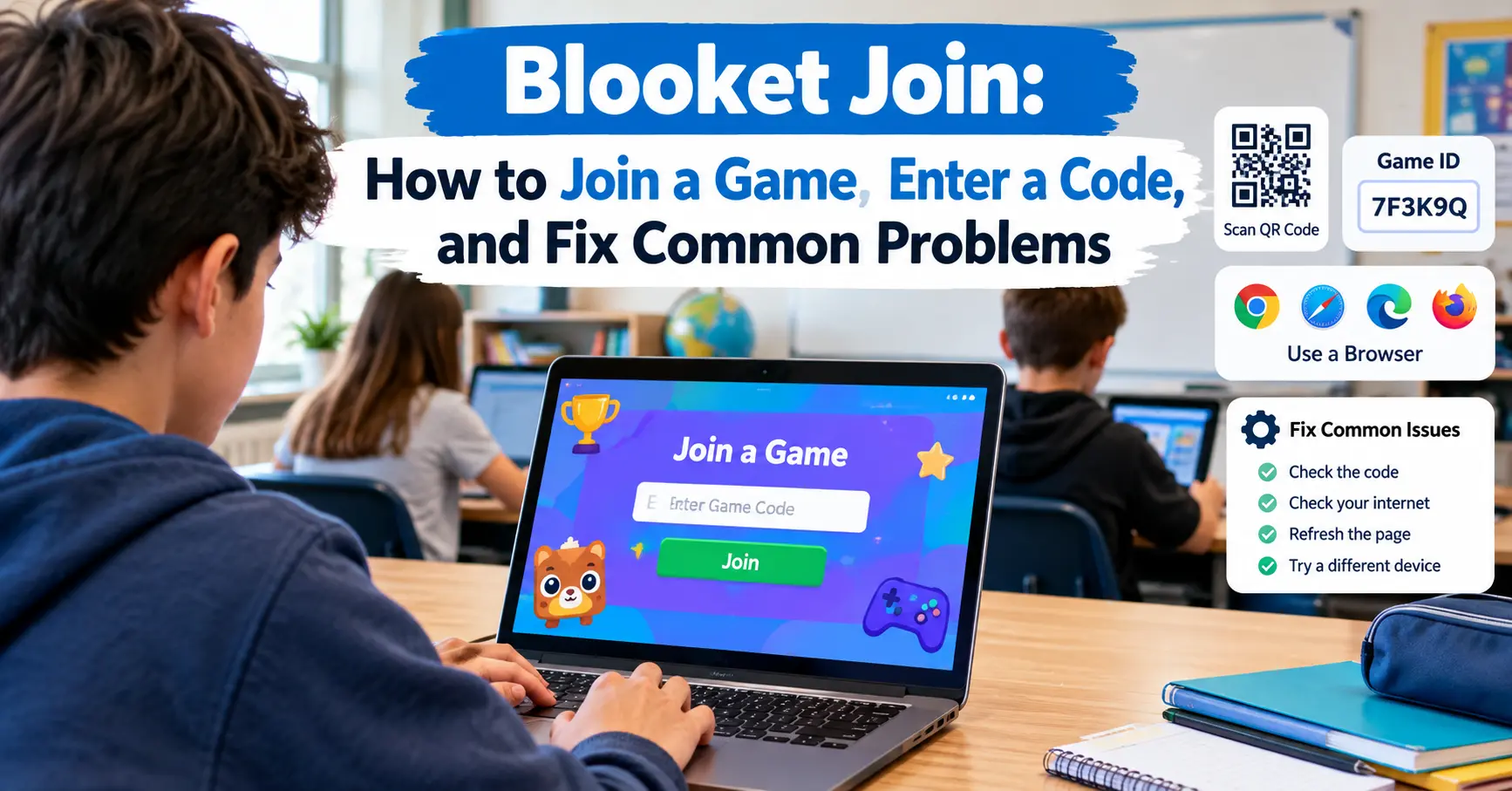
Blooket Join is the quick way to enter a live Blooket game created by a teacher or another host. If you have been given a Blooket game code, you usually do not need to create an account or install an app. You can join directly through a web browser, enter the game ID, choose your nickname, select a Blook, and wait for the game to start.
For students, the process is simple once you know where to go. This guide explains how Blooket Join works, where to enter a game code, how to join with a QR code or link, whether an account is required, and what to do when the game code does not work.
What Is Blooket Join?
Blooket Join refers to the process of entering a live Blooket game that is being hosted by a teacher or another player. The host creates the game and gives players a way to enter the session.
The most common method is a game code. You enter that code on the Blooket joining page, choose a display name, and enter the lobby.
Blooket is different from a traditional online quiz because the questions are combined with game-based activities. Instead of simply answering questions one after another, players can participate in different game modes while reviewing educational content.
You do not normally need to download software. A compatible browser and an internet connection are enough to join a live session.
How to Join a Blooket Game
Joining a Blooket game usually takes only a few steps. Before starting, make sure your teacher or host has already created the game and shared the current game code.
Step 1: Get the Blooket Game Code
Ask your teacher or host for the game code.
The code is normally displayed on the host’s screen when the game is ready for players. Your teacher may also send a join link or display a QR code.
Be careful when copying the number. One incorrect digit can prevent you from entering the game.
Step 2: Open the Blooket Join Page
Open Chrome, Safari, Edge, Firefox, or another modern browser.
Go to:
play.blooket.com
This is the page designed for players who want to enter a live Blooket game.
You do not need to search Google for the game code. Entering the official Blooket play address directly is usually faster.
Step 3: Enter the Game ID
Enter the game code provided by your host.
Check each number before continuing. If you accidentally add a space, miss a number, or enter an old code, the game may not be found.
After entering the code, continue to the next screen.
Step 4: Choose Your Nickname
Blooket will ask you to provide a name that can be shown to the host and other players.
In a classroom, it is usually best to use a name your teacher can recognize. Some teachers may also enable settings that control or randomize player names.
Follow your teacher’s instructions if they have specific naming rules.
Step 5: Choose a Blook
A Blook is the character or avatar you use during Blooket games.
Choose an available Blook and continue. Your Blook is mainly a visual identity in the game, so choosing one does not normally change your ability to answer questions.
Step 6: Enter the Lobby
After joining, you should see a waiting screen or lobby.
Stay on the page until the host starts the game. Avoid closing the browser tab or refreshing unnecessarily.
Once the teacher starts the session, the questions and game instructions will appear on your device.
Can You Join Blooket Without an Account?
Yes. A student can generally join a live Blooket game without creating an account.
For a normal live game, the host provides the game ID and the player can join as a guest. This makes Blooket convenient for classroom activities because students do not necessarily have to stop and create accounts before playing.
However, an account can be useful if you regularly use Blooket and want access to account-based features such as saved progress and personal Blooks.
The important difference is simple:
- Joining a live game: An account may not be required.
- Using personal account features: You need an account.
- Hosting games: The host needs the appropriate Blooket account access.
If your teacher tells you to create an account, follow their instructions rather than assuming guest access is appropriate for that particular activity.
Three Ways to Join a Blooket Game
Entering a game code is not the only way to join.
1. Enter the Game Code
This is the traditional method. Your teacher displays the code, and you enter it on the Blooket play page.
This method works well in classrooms where the teacher is showing the game on a projector or interactive display.
2. Scan a QR Code
A teacher can display a QR code for students.
If you are using a phone or tablet, open your camera and scan the code. If the QR code is active and correctly configured, it can take you toward the game without requiring you to manually type the full game ID.
QR codes can be especially convenient when many students are joining from mobile devices.
3. Use a Join Link
Some teachers share a direct link through Google Classroom, an LMS, email, or a class messaging system.
Instead of manually entering the code, you simply open the link and follow the instructions to join.
This option is useful for remote classes because students do not need to read a code from a classroom screen.
Where Do You Get a Blooket Join Code?
A Blooket game code comes from the person hosting the game.
In a school setting, that person is usually your teacher. The teacher creates or selects a question set, chooses a game mode, starts the session, and provides students with the information needed to join.
You may receive the code in several ways:
- On a classroom projector or smartboard
- Through Google Classroom
- Through another learning management system
- In a video meeting chat
- Through a class messaging system
- Directly from the teacher
Do not assume that a random code found on social media belongs to your class. A code shared publicly may be for a completely different game.
If you are joining a school activity, use the code or link provided by your teacher.
Does Blooket Join Work on Phones and Chromebooks?
Yes. Blooket is browser-based, so students can use different internet-connected devices to join a game.
Chromebook
Open the browser and visit the Blooket joining page. Enter the game ID provided by your teacher.
Chromebooks are common in schools, so this is one of the most practical ways to join a classroom game.
iPhone or iPad
Open Safari or another supported browser and visit the Blooket joining page.
If your teacher provides a QR code, scanning it with the device can be quicker than typing the game ID.
Android Phone or Tablet
Open your preferred mobile browser and enter the Blooket join address. Then enter the game code and continue through the player setup.
Windows or Mac Computer
Open a modern browser and enter the Blooket joining page. The process is essentially the same as on a Chromebook.
The important requirement is a stable internet connection and a browser that can load the Blooket game correctly.
Why Is My Blooket Game Code Not Working?
A Blooket code may fail for several reasons. The problem does not always mean that Blooket itself is down.
Start with the simplest checks.
Check the Code
Look at the code again and compare every digit with the number your teacher provided.
If possible, ask the host to confirm the code rather than guessing.
Make Sure the Game Is Still Active
Live game codes are connected to a particular hosted session. If the host ends the game, the same code may no longer work.
Ask your teacher whether the game is still open.
Check the Joining Page
Make sure you are using the correct Blooket joining page rather than an unrelated website or a search result that only looks like Blooket.
Typing the official address directly into your browser can help avoid confusion.
Refresh the Page
If the page has stopped responding, refresh it and enter the code again.
Do not repeatedly refresh while the game is actively loading if your connection is unstable.
Check Your Internet Connection
A weak Wi-Fi connection can cause the joining page to load slowly or disconnect.
Try reconnecting to Wi-Fi or moving closer to your router if you are playing from home.
Ask Whether the Host Has Started the Game
If everyone else is waiting in the lobby, the problem may not be on your device. The host may simply have not started the game yet.
What Does “Invalid Game ID” Mean?
An “Invalid Game ID” message generally means that the code you entered is not being accepted as an active game ID.
First, check for typing mistakes.
For example, you may have:
- Missed one number
- Added an incorrect number
- Entered an old code
- Used a code from another game
- Entered information in the wrong field
If the code looks correct but still does not work, ask the host for a new or confirmed code.
This is often faster than repeatedly trying the same number.
What If Blooket Is Blocked at School?
Some schools use internet filters that restrict access to certain websites or online services.
If Blooket does not load on a school-managed device, check whether other students are experiencing the same issue.
If the entire class is affected, the problem may be related to the school’s network rather than your individual device.
Do not try to bypass school security controls. Instead, tell your teacher or school IT administrator that the site is not accessible and ask whether Blooket is permitted on the school network.
What If the Blooket Game Is Full?
A host can configure a game with limits on the number of players.
If you see a message indicating that the game is full, contact the host. The teacher may need to adjust the game settings or provide another session.
Do not assume that entering the same code repeatedly will solve a player-limit issue.
Can You Join a Blooket Game After It Starts?
Whether you can join after a game begins depends on the host’s settings and the particular game session.
Some sessions may allow additional players to enter after the game has started, while others may prevent late players from joining.
If your classmates are already playing and your code does not work, ask the host whether late joining is enabled.
The fastest solution may be for the teacher to provide another game or restart the session.
Blooket Join vs. Blooket Login
These two terms are easy to confuse, but they serve different purposes.
Blooket Join is about entering a particular game session.
Blooket Login is about accessing your Blooket account.
You can think of it this way:
Join = enter today’s game.
Login = access your personal account.
If your teacher gives you a game code and simply asks you to play, you may not need to log in first.
If you want to use account-based features, follow Blooket’s account and login process.
Tips for Joining Blooket Faster
If you play Blooket regularly, a few simple habits can make joining easier.
Save the Correct Join Page
Keep the official Blooket joining page bookmarked in your browser. This saves time when your teacher starts a game.
Check the Code Before Typing
Look at the entire number before pressing Enter. A few seconds spent checking the code can save several failed attempts.
Use the QR Code When Available
On a phone or tablet, scanning a teacher’s QR code can be faster than typing a long game ID.
Keep Your Browser Updated
An outdated browser can sometimes cause compatibility problems with modern web applications.
Use a Stable Connection
If possible, use a reliable Wi-Fi connection during classroom games. Avoid switching networks while a game is loading.
Follow Your Teacher’s Instructions
Your teacher controls the game session. If they tell you to use a particular link, nickname format, or account, follow those instructions.
Is Blooket Safe for Students?
Blooket is designed as an educational game platform, but students should still use it responsibly.
The safest approach is to join games provided by your teacher or school. Avoid entering random public games unless you understand who is hosting them and why.
Students should also avoid sharing private information in usernames or chat areas. A simple classroom-friendly nickname is usually enough.
Parents and teachers can also review the platform’s current privacy and account information before allowing younger students to use it.
What Teachers Need to Do Before Students Join
Students cannot join a normal live Blooket session until a host has created and started the appropriate game.
The teacher generally needs to:
- Sign in to Blooket.
- Select or create a question set.
- Choose a game mode.
- Start hosting the game.
- Share the game ID, QR code, or join link.
- Wait for students to enter the lobby.
- Start the game when everyone is ready.
This explains why a Blooket code may not work before the teacher has opened the session.
Common Blooket Join Mistakes to Avoid
Most joining problems are easy to prevent.
Using the wrong website: Always check that you are on the official Blooket site.
Typing the wrong code: Carefully compare every digit with the code shown by your host.
Using an old code: A previous live-game code may no longer be active.
Closing the lobby: Stay on the page after joining until the host starts the game.
Using random public codes: A code from an unrelated video or social post may not belong to your classroom.
Ignoring school restrictions: If your school network blocks the service, contact your teacher or IT team instead of trying to bypass the restriction.
Frequently Asked Questions About Blooket Join
What is Blooket Join?
Blooket Join is the process of entering a live Blooket game using a game ID, QR code, or shared join link.
What website do I use to join Blooket?
Use the official Blooket joining page provided by Blooket. Your teacher may also give you a direct join link or QR code.
Do I need a Blooket account to join?
You generally do not need an account to join a live game as a guest. An account is useful for features connected to personal progress and saved information.
Where can I get a Blooket game code?
Get the code from the teacher or person hosting the game. It may appear on a classroom screen or be shared through a learning platform or class message.
Can I join Blooket on my phone?
Yes. You can use a supported mobile browser to join a Blooket game. A QR code can also make the process easier when one is provided.
Why does my Blooket code say invalid?
The code may be incorrect, expired, or connected to a game that is no longer available. Confirm the code with your host and make sure the game is still active.
Can I join Blooket without downloading an app?
Yes. Blooket is browser-based, so you can normally join through a compatible web browser without installing a separate app.
Can I join after the game starts?
It depends on the host’s settings and the specific game. Ask the host whether late joining is enabled.
Conclusion
Blooket Join is designed to make entering a classroom game quick and simple. In most cases, you only need an internet-connected device, a browser, and the game information provided by your teacher.
The basic process is straightforward: open the Blooket joining page, enter the current game code, choose your nickname and Blook, and wait for the host to start. You may also be able to join through a QR code or direct link.
If the code does not work, check the number carefully, confirm that the game is still active, and make sure your internet connection and browser are working properly. For school games, always use the joining information provided by your teacher.