
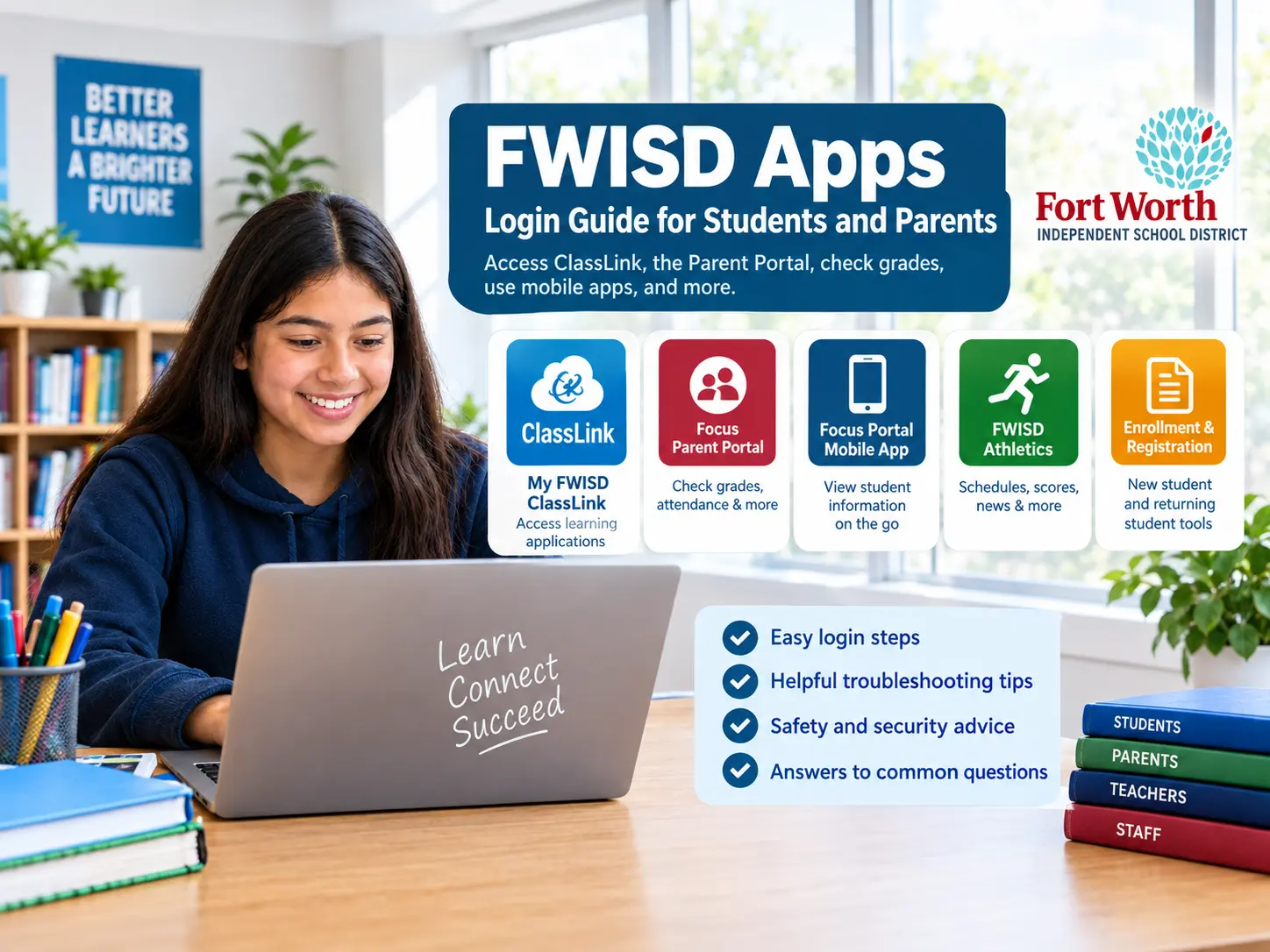
FWISD Apps help students, parents, teachers, and staff access important school resources through digital platforms used by Fort Worth Independent School District (FWISD) in Texas. These tools can make everyday school tasks easier, from checking grades and attendance to accessing learning resources and managing student registration. However, finding the correct app or login page can be confusing, especially for new students and families.
This guide explains how FWISD Apps work, how to sign in, which digital tools families may need, and what to do when login problems occur. It also explains the difference between the student app portal and the Parent Portal, so you can choose the right service without wasting time.
What Are FWISD Apps?
FWISD Apps refers to the digital applications and online services used by Fort Worth Independent School District. These tools help students access educational resources and allow families to stay informed about school activities and academic progress.
Rather than relying on one application for every task, FWISD uses different platforms for different purposes. Students may use a school app portal to reach learning resources, while parents can use the Focus Parent Portal to review grades, attendance, schedules, and other student information. Fort Worth Independent School District provides official instructions and technology resources to help families use these services.
For example, a student who needs an online learning resource may use the district’s student portal, while a parent who wants to check a child’s report card should start with the Parent Portal.
The main benefit is convenience. When users understand which platform handles each task, they can find school information more quickly and avoid unnecessary login attempts.
How to Access FWISD Apps
The correct login method depends on whether you are a student, parent, teacher, or district employee.
Step 1: Visit the Official FWISD Website
Start at the official FWISD website or use the specific district resource linked to your school account. For student learning tools, check the instructions provided by your campus for the current student portal.
Step 2: Select the Correct Portal
Choose the platform that matches your needs. Students may need the My FWISD portal, while parents and guardians looking for academic records should use the Focus Parent Portal.
Step 3: Enter Your Login Details
Use the credentials provided by the district or your school. Depending on the service, this may include a student email address, school password, or Parent Portal account.
Step 4: Open the Required Application
After signing in, select the available app or service you want to use. The options displayed can vary according to your account and the district’s current setup.
Step 5: Sign Out on Shared Devices
If you use a public computer or a device shared with other people, sign out after finishing. This helps protect student records and personal information.
Important: Always use official district links or school-provided instructions. Avoid entering student credentials on unfamiliar websites that claim to offer FWISD login access.
Main FWISD Apps and Digital Tools
FWISD offers several digital services for different school-related needs. The following table explains which tools to look for and when to use them.
| App or service | Main purpose | Who may use it |
|---|---|---|
| My FWISD ClassLink | Access district-linked learning applications | Students and authorized staff |
| Focus Parent Portal | Check grades, attendance, schedules, and student records | Parents and guardians; student access may also be available |
| FWISD Focus Portal app | View student information through a mobile device | Families, students, and eligible staff |
| Parent Portal enrollment | Register students and complete required forms | Parents and guardians |
| FWISD Athletics | Follow school sports, schedules, scores, and broadcasts | Students, families, and sports fans |
| School meal and payment services | Find meal information or manage eligible school payments | Families |
These services have different purposes, and availability can depend on your account or school. The district’s website lists ClassLink, Focus Login, Parent Portal, athletics, and other resources.
1. My FWISD ClassLink
My FWISD ClassLink is a portal that gives authorized users access to district-linked digital resources from one place. Instead of remembering a separate website for every learning tool, students can open the applications available through their account.
The district’s published student guide describes signing in through ClassLink and using the My Apps screen to open resources. Some applications may also require a browser extension or a separate account connection.
You can start from the official My FWISD ClassLink link. Follow your school’s current login instructions if the sign-in process has changed.
2. FWISD Focus Parent Portal
The Focus Parent Portal is particularly useful for parents and guardians who want to follow their child’s academic progress.
Depending on the information entered by the school, families can access:
-
Grades and assignments
-
Attendance records
-
Student schedules
-
Report cards
-
Teacher contact information
-
STAAR test results
The district notes that teachers may update grades at different times, so not every assignment or grade will necessarily appear immediately.
Visit the official FWISD Parent Portal to create an account, log in, add a child, or review the setup instructions.
3. FWISD Focus Portal Mobile App
Parents who prefer using a phone or tablet can look for the FWISD Focus Portal app in the official app store.
The app listing states that users can access student information such as grades, schedules, attendance, assignments, and test scores. It also provides public messages and links, while student-specific information requires login.
Download it only after confirming the app’s name and developer details.
-
Find FWISD Focus Portal on Google Play
-
Find FWISD Focus Portal on the Apple App Store
Use your existing Focus or Parent Portal credentials as instructed. If your login does not work, check whether you can access the web portal first.
4. FWISD Athletics App
The FWISD Athletics app is intended for people who want updates about district sports.
Its published description includes features such as:
-
High school sports schedules and scores
-
Team rosters
-
Sports news
-
Game and event broadcasts
-
Notifications and announcements
This app is separate from the academic Parent Portal. If you want to follow a game or check a sports schedule, the athletics service is a more suitable starting point.
5. Enrollment and Registration Tools
FWISD also provides online services for families enrolling new students or completing forms for returning students.
Through the district’s enrollment resources, parents can find information about new-student registration, returning-student forms, school transfers, and Schools of Choice programs.
Start with the official FWISD Enrollment website. Choose the section that matches your student’s situation instead of assuming that all enrollment tasks are completed through the same screen.
FWISD Apps Login for Students
Students generally need the login information issued or approved by their school. The exact steps depend on whether they are opening ClassLink, Focus, or another district-linked application.
For the ClassLink student portal, the district’s published guide describes signing in through Microsoft with a student email address and school password. That guide includes an example of the student email format, but students should follow their current campus instructions because account details and procedures can change.
If you are a student trying to sign in:
-
Open the official My FWISD ClassLink portal.
-
Select the district’s approved sign-in option.
-
Enter your school account details.
-
Complete any additional verification requested.
-
Select the application you need.
If the portal rejects your password, avoid repeatedly trying random passwords. Use the district’s official student password help or ask your school’s technology staff for assistance.
How Parents Can Create a FWISD Parent Portal Account
Parents and guardians can use the Parent Portal to follow student progress and access enrollment services. A separate parent account may be needed even when a student already has a school login.
According to the district, parents need the student’s ID, the student’s date of birth, and a valid parent email address to set up an account. The school may take up to five business days to approve an account request.
Follow these steps:
-
Visit the official Parent Portal page.
-
Select the option to create a Parent Portal account.
-
Enter the requested parent and student information.
-
Complete the registration steps.
-
Wait for the school to verify your request.
-
Sign in after your account is approved.
If your child is already enrolled, use the option to add a child to an existing account rather than automatically creating another account. If you have forgotten your login details, use the available recovery options or contact your child’s campus.
What Can You Do With FWISD Apps?
The most useful feature depends on what you need to accomplish. Understanding each service’s purpose helps you avoid opening the wrong portal.
Check Grades and Academic Progress
Parents can review grades entered by teachers and monitor assignments through the Focus Parent Portal. Students can use the learning applications available to them to support their coursework.
Remember that a missing grade does not always mean an assignment has not been completed. The teacher may not have entered the result yet.
Review Attendance and Schedules
The Parent Portal can help families review attendance information and student schedules. These details are useful for checking school-day arrangements and identifying information that may need clarification.
If an attendance entry looks incorrect, contact the school rather than assuming the portal can change the record automatically.
Find Enrollment Information
Families can use FWISD’s online enrollment pages to understand registration requirements, returning-student forms, and available transfer options.
Check deadlines and required documents before submitting an application. Requirements can differ depending on the program and school year.
Follow School Sports
The athletics service helps users find schedules, scores, rosters, and other sports updates. It is useful for families planning to attend games and for fans who want to follow district teams.
Access Learning Resources
The ClassLink portal can provide access to district-linked educational applications. Which tools appear may vary according to the user’s role and account permissions.
For the most accurate list of resources, sign in with your authorized account and follow the links provided by your school.
FWISD Apps Not Working? Common Problems and Solutions
Login issues can happen for several reasons, including incorrect credentials, browser problems, account permissions, or temporary service interruptions. Try these solutions before requesting technical support.
Check your username and password carefully. Make sure Caps Lock is off and that you are using the correct account for the portal. Use the official password recovery process if needed.
Refresh the page, check your internet connection, and try another supported browser. If the issue continues, check the district website for updates or ask your school whether the service is experiencing problems.
Check for an app update, close and reopen the app, and confirm that your device has a working internet connection. If necessary, try signing in through the official website.
Confirm that you are using the correct account. For a parent account, check whether the school has approved the request and whether the child has been added successfully.
Check whether the app is available to your account. Some tools may require school authorization or a separate setup process. Contact your campus technology team if the resource should be available but is not displayed.
Where to Get Official FWISD Technology Support
If these steps do not solve your problem, use the district’s official Family Information and Technology Resources page.
The district lists the following support details:
-
Technology Help Desk: 817-814-4357
-
Main district number: 817-814-3000
-
Help Desk hours listed by the district: Monday–Thursday, 7:00 a.m.–6:00 p.m.; Friday, 7:00 a.m.–5:00 p.m.
Check the official page for current support hours and available help options before contacting the district.
Are FWISD Apps Safe to Use?
Official FWISD applications and portals are intended to support school activities and provide authorized access to educational information. However, users should still take precautions when handling student accounts and personal records.
Follow these simple safety practices:
-
Use official FWISD websites and verified app-store listings.
-
Keep student and parent passwords private.
-
Avoid signing in through unfamiliar links in emails or messages.
-
Do not save passwords on public or shared computers.
-
Sign out when using someone else’s device.
-
Keep your browser and mobile applications updated.
-
Contact the school if you notice unfamiliar activity or incorrect student information.
Parents should also be careful when sharing screenshots of grades, schedules, student IDs, or other school records. These details may contain private information.
Tips for Using FWISD Apps More Effectively
A few simple habits can make these digital services easier to manage.
Bookmark the official login pages. Save the ClassLink and Parent Portal links in your browser so you do not have to search for them every time.
Choose the right portal first. Use ClassLink for the learning applications available through your student account and the Parent Portal for family access to academic records and enrollment services.
Check updates regularly. Review grades, attendance, and school announcements when needed, but remember that information may not appear immediately after a teacher or school makes a change.
Keep account information current. Use a valid email address and contact your school if your parent account details need to be updated.
Ask for help early. If a student cannot access an important learning resource, contact the teacher or campus technology team instead of waiting until an assignment is due.
Frequently Asked Questions About FWISD Apps
1. What does FWISD stand for?
FWISD stands for Fort Worth Independent School District, a public school district in Fort Worth, Texas.
2. How do I log in to FWISD Apps?
Visit the official FWISD website and open My FWISD ClassLink or the appropriate student service. Sign in with the credentials provided by your school.
3. How can parents check grades through FWISD Apps?
Parents and guardians can sign in to the FWISD Parent Portal to review grades, assignments, attendance, schedules, report cards, and available test results.
4. Is there a FWISD app for iPhone and Android?
Yes. The FWISD Focus Portal has listings for both Android and Apple devices. Users should verify the official app listing and use their existing portal credentials as instructed.
5. What should I do if I forget my FWISD password?
Use the official password recovery option available for your account. Student accounts may require help from school technology staff, while parents can use the Parent Portal recovery options or contact their child’s campus.
6. Can I use FWISD Apps without an account?
Some public messages and links may be accessible without signing in. However, student-specific information and protected learning resources generally require an authorized account.
7. Why are my child’s grades not showing in the Parent Portal?
Teachers may enter grades at different times, so some results may not appear immediately. If the information remains missing or looks incorrect, contact the teacher or school office for clarification.
8. Where can I find help with FWISD Apps?
Visit the official FWISD Family Information page for technology resources, setup guides, and district support information.
Conclusion
FWISD Apps make it easier for students, parents, teachers, and staff to access the digital resources they need for school. The key is understanding that different services handle different tasks. My FWISD ClassLink provides access to district-linked learning applications, while the Focus Parent Portal helps families monitor academic progress and manage student-related information. Separate services support athletics and enrollment.
To avoid login problems, start with the official FWISD website, use the correct account, and follow the instructions provided by your school. If an app is unavailable or your credentials stop working, consult the district’s technology resources or contact your campus for assistance. With the right portal and a few basic security habits, managing everyday school tasks becomes much simpler.